๐ Upgrade your home office with lightning-fast, secure Wi-Fi that keeps you connected and ahead of the curve!
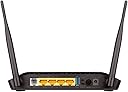
The D-Link DSL-2750U Wireless N 300 ADSL2+ Router delivers reliable high-speed internet with up to 300 Mbps wireless transfer rates, supporting multiple devices via 4 Ethernet ports and RJ-11 ADSL connectivity. Featuring robust WPA2 security, QoS traffic management, and a 3-year warranty, itโs designed for seamless HD streaming, video conferencing, and everyday business use. Ideal for millennial professionals seeking affordable, durable networking with easy setup and ongoing support.


| ASIN | B007O7J026 |
| Antenna Location | Business, Home |
| Best Sellers Rank | #179,365 in Computers & Accessories ( See Top 100 in Computers & Accessories ) #547 in Routers (Computers & Accessories) |
| Box Contents | Router |
| Brand | D-Link |
| Brand Name | D-Link |
| Colour | Black |
| Compatible Devices | Laptop, Personal Computer, Smart Television, Smartphone, Tablet |
| Connectivity Protocol | ADSL, Wi-Fi (802.11 B/G/N), Ethernet (10/100 Mbps) |
| Connectivity Technology | Ethernet, RJ11, Wi-Fi |
| Customer Reviews | 4.1 out of 5 stars 12,866 Reviews |
| Data Transfer Rate | 300 Megabits Per Second |
| Frequency Band Class | Single-Band |
| Importer Contact Information | D-LINK (INDIA) LTD Plot No U02B, Verna Industrial, Estate, Verna, Goa 403722 |
| Is Modem Compatible | No |
| Item Type Name | Router |
| Item Weight Unit of Measure | 113.4 Grams |
| LAN Port Bandwidth | 10/100 Mbps |
| Manufacturer | D-Link Corporation, No. 289, Xinhu 3rd Road, Neihu District, Taipei 11494, Taiwan |
| Manufacturer Contact Information | No. 289, Xinhu 3rd Road, Neihu District, Taipei 11494, Taiwan |
| Manufacturer Part Number | DSL-2750U |
| Maximum Upstream Data Transfer Rate | 1 Megabits Per Second |
| Model Name | D-Link 2750U |
| Model Number | DSL-2750U/IN |
| Number of Ports | 5 |
| Operating System | dos |
| Other Special Features of the Product | BRAND NEW , 100% GENUINE, 3 YEARS D-Link INDIA WARRANTY |
| Packer Contact Information | No. 289, Xinhu 3rd Road, Neihu District, Taipei 11494, Taiwan |
| Security Protocol | WPA2-PSK |
| Special Feature | BRAND NEW , 100% GENUINE, 3 YEARS D-Link INDIA WARRANTY |
| UPC | 790069349492 790069443459 790069337789 790069423390 790069337116 |
| Unit Count | 1 Count |
| Warranty Description | 3 years warranty provided by the manufacturer from date of purchase. Customer has to register the product online to activate the warranty and Warranty replacement is at their Door step |
| Wireless Communication Standard | 802.11b, 802.11g, 802.11n |
| Wireless Compability | 802.11b, 802.11g, 802.11n |
R**N
Good Modem + 2.4GHz WiFi Router for telephone internet
** Purpose ** โ This is a modem-cum-router โ This can be used for the following purposes - Connect as the first device (modem) to your standard telephone line for internet (DSL line with RJ11 jack) - Connect your laptop or other devices to internet using the standard Ethernet RJ45 wire as well as using WiFi - To create a wired or wireless network for file sharing and other functions between your devices ** Package Contents ** โ Modem-Router had the two antennas already fixed in the package and is ready to use โ RJ45 Ethernet cable, RJ11 Telephone Cable โ Power adapter โ Telephone Cable Splitter โ Installation CD โ Warranty Information โ User Manual ** Installation ** โ Pre-requisites - Your primary reason for buying this may be either your existing modem is damaged OR you may need to make your wired internet WiFi OR you have agreed to Service Provide that you will buy your own modem - There should be an internet cable wired to your home by Service Provider; this will have a RJ11 jack at your end. This will mostly be an extension from your telephone line - If they have not wired the cable but you have the telephone, you can do it using the splitter that came with this modem. Buy a telephone cable less than 1 meter in length with RJ11 jack at both ends. Unplug the input cable from your telephone and plug into the input socket of the splitter. Plug the new wire that you bought to the other ends of the splitter. Run the other RJ11 cable to your phone input. Your phone is now functional as before. - So, now we have one RJ11 cable from the splitter OR RJ11 cable wired by Service Provider available for the modem โ Installation is a simple and very easy process - Plug the RJ11 cable to modem input (Grey port with the label DSL) - Connect the modem to a computer using the RJ45 Ethernet cable that came with the modem. Use any one of the four LAN ports (black ones) on the router - Connect the power adapter to router - Turn the router on by pressing the power switch at the back of router - Wait for a few minutes, and your computer soon detects and connect to the modem - Once connected insert the CD that came with the modem and it helps to configure everything and its very easy. If you want to do it manually, follow the steps below - Once connected, open browser and type 192.168.1.1 - Login screen comes up. User Name and Password is admin - After login use the Wizard to set up your internet, WiFi, security, etc. ** Performance as Internet Modem & WiFi Router ** โ My ISP is BSNL and the WiFi modem that came with it was TPLink. The modem got corrupted where I was always redirected to malicious websites while using browser. I tried resetting the modem, formatting all the connected devices, updating the firmware, etc. And finally when I replaced the modem, it got resolved โ I use this for home internet at my parents' and basic networking between the devices โ I have installed the modem near my telephone in drawing room. I have run an Ethernet cable to my Smart TV and connect four smartphones, two tablets, a computer and Chromecast. On weekends, this goes up to four smartphones, three tablets and two laptops โ Signal Strength and Range - I have more than 70% WiFi strength beyond a brick wall and a concrete floor; I get around 40% strength in garden where the signal has to pass through three brick walls - In direct line of sight, I get 20% signal strength 80 meters away from the modem - When I am near my home, my phone switches from 4G to WiFi when I reach within 50 meters of my house โ Speed - The ISP is BSNL and plan speed is 4Mbps; in all my Internet Speed Tests on WiFi, I get speeds more than 2Mbps. - I stream 1080p videos using Chromecast and is fast. It makes full use of my internet bandwidth and does not slow down generally - Video streaming on Smart TV via LAN is also good, even though I don't use it very frequently due to the Chromecast - Data Transfer between devices is super-quick - Video streaming from devices to TV is also flawless. I have tested streaming from my phone and desktop to TV and it has never stopped for buffering - Networking also works well where I can browse files in all the connected devices, copy between devices, stream video or music from a device using any other device, etc. I had never tried this earlier using the TPLink modem that came with BSNL internet โ The router does not have annoying bright lights on it; all the green LEDs are small and is pleasant in darkness โ Other features - There is a WiFi On/OFF button at the back - The modem-router supports 64 or 128 bit encryption of wireless networks which means you can set up a password for your WiFi and it is quite hard to break that password by hackers. This can also be turned off by a button - You can get to know which all devices are connected to the router at any time - You can also configure this in such a way that only listed devices can be connected and connection requests by other devices will be refused - The WiFI signal can be kept hidden if needed; so this will not get listed when someone search for available WiFi and those who know the WiFi Name and Password can easily connect ** Summary ** โ I am quite happy with this purchase and is meeting my requirements of - Internet Video Streaming to HD TV and - Networking, data transfer and video streaming across my devices - Signal range at every corner of my house including garden โ The WiFi frequency is 2.4GHz. If you live in an apartment, you are surely to get a lot of interference from your neighbour's WiFi and it can result in poor reception of WiFi by your devices. If this is a problem, you may have to purchase a dual band Modem-Router which will have the 5GHz frequency which will resolve the interference issue โ So, I consider this value for money for Rs.1683/- which I paid in Aug-16. ** Update after 6 months in Feb-17 ** โ The modem is always ON and it's working fine without any issues. I have not faced any problems so far like malwares on modem firmware or automatic resetting of modem, etc. which I had experienced with my old TPLink one.
A**R
BSNL BROADBAND ISSUE RESOLVED. PERFECT MODEM FOR HOUSEHOLD USE.
I bought this modem with huge expectations and the modem is performing upto it. Even though I ordered a version 1 i got a version 2. Initially there was a lot of issues with the same. I'm writing this review to help those who are having trouble with this modem. I am a BSNL broadband user. Modem configuration is simple and hassle free. Only thing u need to enter is your BSNL username and password rest is automatically done by the modem as u select your country (India) and service provider (BSNL). The modem started working smoothly and I was so happy with the range. It could cover my entire home. But sooner or later modem started showing the same issue repeatedly. WiFi gets turned off automatically and the internet connection also gets disconnected. The only light that turns on in the modem will be DSL and power. Rest of the lights get turned off automatically. The only solution for this problem is to reset and reconfigure your modem every now and then, which is a great pain in the arse. Initially since I thought the issue was with my BSNL exchange r connection I spent more than a week disturbing them. Well they couldn't find anything wrong with my connection. It was too late when I realized that the modem is faulty.(return window just got closed a day before the realization). So I googled and even went through FAQs n here and some of the reviews. And I got this idea of calling the dlink customer service. The associate from the other side asked for a few details and she told me to update the firmware which she's going to mail me. So soon after the call got disconnected I updated the firmware of my modem to 1.7 which was 1.5 when I got t. To my surprise my problem got resolved thereafter. Now everything works like a charm. I'm writing this after 15 days of usage. So instead of yelling at cloudtail or Amazon do what I did and enjoy surfing. Hope this helps at least some of you. Because if there's a review like this it could have saved a lot of time for me. Happy surfing... D-Link Support Toll Free No.:1860 233 9999 GSM/CDMA USER- +91-832-2856300 & 2856000 (Local & STD Charges apply) Email: [email protected]
A**Y
Buy now and thank me later!
I received this product from Amazon without a scratch, and in time. Now I would like to clear some of the doubts that arise in your mind after reading all the negative reviews on this beautiful product. This device replaced my 4 year old Netgear DGN1000 N-150 Modem / Wi-Fi Router, two days ago, after it started to malfunction due to a lightening strike near my place. The D-Link DSL-2750U ADSL2+ Modem / N 300 Wi-Fi Router is a bang on the buck. Here's why: 1) I purchased the device for Rs. 1,890/- (incl. quick delivery charge), and at that price, it is a steal! I would have purchased it even at its usual price, for it is the most in-expensive combo device by one of the most reliable brands. 2) In the box, you get a meter long telephone cable, and a Cat 5e patch cable, an ADSL splitter, the setup disc, warranty booklet, and a quick setup guide. I have put the splitter, telephone patch cable, and the setup disc to use while setting up the device with my desktop computer, and they all work PERFECTLY! Setting up my BSNL DSL connection using the setup wizard has never been so easy. You simply have to provide the details the wizard prompts you for, and you will be good to go! 3) It is extremely light weight, and it does NOT feel plasticy or cheap. The glossy finish on the top of the device makes it look more attractive. 4) The device is in "ON" state since I configured it yesterday, and there has absolutely been no glitch of any sort with its operations. Both, Wi-Fi, and DSL connections have been VERY stable so far. 5) I have a CCTV Network DVR at home that stays ON 24*7, which means my Internet connection has to remain in ON condition at all times in order to feed it the network connection for remote monitoring. Heating becomes a major issue in such conditions, and I keep monitoring the temperature of the device quite often. The device gets hot, but not as hot as my Netgear Modem / Router used to get despite it being only an N-150 device. I don't entirely blame the device for getting hot because I don't keep the room well ventilated. I can say with confidence that it produces much lesser heat in a well ventilated room; especially in AC environment. 6) Wi-Fi signal strength - I live in a 30' x 40' house, and my computer and all of my gadgets are on the first floor house (not duplex). I can easily stream videos in my ground floor house and stream my live CCTV feed from almost all the places at home. We have a whole ceiling mould to consider for the WiFi signal to penetrate, and then we have several concrete walls also. I get at least 2 lines of signal strength throughout my place. So yes, it is pretty good, and I cannot ask for more from it! 7) Configuring Firewall, Port Forwarding, LAN configuration making Wireless settings, etc have all been really easy. Of-course I have more than basic amount of networking knowledge, but which beginner would want to meddle with port forwarding and other such features without its knowledge? I don't see what it is that made some people here complaint about the user interface of the device's stock firmware. I assure you it is not as bad as some people here portray it. I cannot really comment about D-Link support, as I'm new to it. Hopefully with this device, I don't have to contact them. There can only be three kinds of people who complaint here. a) Noobs - they have less - zero knowledge about technology, but they take a shot at reviewing it anyway. b) Pros - they buy a consumer level product and complaint about its lack of features for professional use. c) Unfortunate buyers - they have genuine complaints, but their cry is over-shadowed by (a) and (b)'s reviews. --------------------------------------------------------------------------------------------------------------------------------------------------- UPDATE: -------- 1) The device is running flawlessly ever since I purchased it on 11/Oct/2014, and today is 06/Mar/2015. 2) I leave it ON for weeks, and I restart the device only when my Internet connection has issues (on the ISP's end - BSNL) 3) A couple of months ago, I even upgraded its firmware with the latest one that's available. Took it like a champ ;) 4) Your computer that's connected to this device can access a USB pen drive by connecting it to the USB port at the back of the device, and by configuring the SAMBA server from the router configuration page before hand. For more help, contact D-Link support through email, and they will give you the steps to do so. UPDATE 2: (12-Jan-2016) ---------------------------------------- 1) Still working great! 2) I have ordered the same device for two other friends of mine recently! One is already in use, and the other in on its way. 3) You would probably receive hardware version "V1" with new purchases. The only drawback is, there are NO firmware updates for these latest device yet, and the WiFi indicator does NOT blink on WiFi usage with the stock firmware. UPDATE 3: (10-May-2016) ---------------------------------------- This summer was the hottest in Bengaluru (close to 40ยฐC), and the device heated up in my poorly ventilated room like a pre-heated oven. Still, no signs of glitches of any sort in its working. What a hardware!
M**M
Average
Good
A**L
The best and the simplest there is
Ordered it last week. Delivered in 2 days. Gr8 packing and fast shipping The box contains the modem-router, ADSL splitter (dont buy a seperate splitter for that), RJ11 cable, charger, setup CD, and some literature. My tip...dont use the setup CD at all. I am using this router with MTNL connection and I will explain the procedure to configure accordingly. Configure Dlink DSL-2750U modem to work with MTNL Mumbai and Delhi At one point of time, every one gets fed up of the router provided by MTNL authorities and start their hunt for a new custom modem. Most of the people buy a modem absolutely without any carrying out any research work but there are a few who spends hours before deciding upon which product to go for. In either case, you have made the best decision! Let us first understand this router. It has a WAN port with RJ-11 interface, in layman's language, the phone line. There are 4 ethernet ports to connect to 4 computers directly, or using external switches you can connect more devices with speed limitations of 100 Mbps There are two Wifi antennas, it supports dual band Wireless LAN upto speed of 300 Mbps There is a multi-functional USB port which supports: A LAN connection to a computer via USB port (you should use this only if your PC is without a LAN port or WLAN port) USB Harddisk which can be accessible throughout the network (I"ll be posting a detailed procedure very soon) Connection to any printer and thus you can create a network printer using your cheap old printer. (Again, I"ll be posting a detailed procedure very soon) Now let us begin with the configuration of the router: Step 1: Connect the ADSL splitter provided with your router to your main MTNL line to the Line port. Connect the modem port of the splitter to the DSL port of your new router with the new RJ-11 cable provided with the router. Connect your landline telephone unit to the Phone port of the splitter. Step 2: Connect your desktop/laptop to the LAN port of the router. Switch on the router. Step 3: After the power led on the router changes from red to green, you open your computer's browser and type the following address: http://192.168.1.1/ Enter the password as "admin" and click on Login Step 4: Click on Setup Wizard Click Next to continue As you can see, there are 5 steps in configuration viz: Step 1 : Set Time and Date Step 2 : Setup Internet Connection Step 3 : Configure Wireless Network Step 4 : Set password Step 5 : Completed and Quit Step 5: Select the first option to automatically synchronize date with the online servers (Optional) You can ignore completely this tab and click on Next or manually set the date and time as per the above figure. Step 6: Set-up your connection. Apparently this is the most important tab in the configurations page, if you get this right, your job is done. Before you can enter the values in this tab, you need your landline bill handy. Protocol: PPPoE Encapsulation Mode: LLC VPI: 0 VCI: 32 Username: This could either be your 8 digit phone number or 8 digit phone number followed by @a. All the MTNL Mumbai connection post 2008 have @a suffix. e.g. Username: 23232323@a Password: This is your 10 digit CA number found on the top left corner of your bill. Step 7: Now you are done with your Internet setup, now its time to setup your Wifi Click on "Enable your Wireless Network" Enter any name of your choice in the "Wireless Network Name (SSID)" form. Note: Your network will be broadcasted by this name. I recommend that you keep your network visible, or else many times it will cause you trouble configuring your wireless devices. Select the best encryption security i.e. WPA2-PSK and enter your password. Please note that the password should not be obvious and guessable. (8-63 characters, such as a~z, A~Z, or 0~9, i.e. '%Fortress123&') Click next to continue Step 8: Now if you feel that you are an advanced user, you can change the admin password as per your wish, but its optional and if you forget your password you will have to reset your device. So I leave the ball in your court, so you can either skip or click on next to continue. Click on Apply, and your router will be rebooted and if you have followed my intructions correctly, then enjoy your net access. Just took me 15 minutes from opening the package to enjoying the internet access,
D**R
Good product and the best in the cheap ADSL Modem business.
Excellent service by Amazon ! I got the consignment in two days under normal dispatch. The product was neatly packed and was tidy. This modem provides you with the bang for the buck performance. I got it for ~1600 INR with ADSL2+ plus N300 (useless with my snail speed BSNL) + USB drive sharing over network support all of which combined is pretty cheap. Yes, it does hot up like hell over long hours of use with DSL breaking up frequently but there is a fix to this issue. My Constraints: 1. My house spans about 1450 sq.ft and has two floors. the ADSL modem would be placed in a corner of a room in the ground floor. which means the corner of the room diagonally opposite in the first floor will get the weakest Wi-Fi bar. 2. I am a typical lazy person and I never care to switch off the modem/router , so it runs 24x7 (sometimes even when I am on a vacation) my ZTE (provided by Bsnl) modem simply gave up on its life in just less than a year of bleak service. 3. I should beware and steer clear of any modem which has the likes of what bsnl provides along with its pathetic internet connection (may be binatone , ZTE, and etc.) I started out by reading reviews from which I shortlisted D-Link 2750 and Netgear D1500 as an affordable modem+router. I have read a lot of reviews in a lot of E-commerce sites for this modem and more than 50% of the reviews were flagged as "not satisfactory". I have had almost a lifetime of experience dealing with cheap <3000 INR modems and hereby I write this review and also some known tips on how to get the maximum out of your cheap plastic router+modem. Common complaints and TGW (things gone wrong): 1. Range is poor : this is common in tall apartments where they use thick concrete and that means more energy is lost by the Wifi signal working its way through walls. It is not advisable to increase the antenna height / power which will be injurious to health in the long run due to radiations (there are laws which govern this). Solution: Use it in a central location of your house ( preferably hooked to a ceiling in your living room) or if your house is so large and you have range issues don't fall for multi non detachable antenna routers(detachable antenna routers are costly), they are useless, instead buy one modem+Router and one Router without modem which will be inter-connected using LAN cable to increase WI-FI range your budget will be less than 3000 INR with excellent range in any corner. 2. Overheats / Poor performance / DSL lost frequently : This happens with all cheap modems because they weren't designed to work 24X7. Offices use a different router(Switches) which has a very good cooling system but not anywhere near to affordable for a household point of use. Solution: If your ISP supports you with consistent internet then buy a cooling fan (12 Volt cooling fans available for a throw-away 200 INR or extract one from a dead PC at home). I used my old PC cooling fan with my old dead Modem's 12V adapter for powering this ,some tapes and ducts (refer picture) and you have an efficient 24X7 working modem free of interruptions with an efficient cooling system. 3. If you use ACT or similar fiber-net then buying this modem is probably costing you more because you paid for the DSL part ( the modem) which you will never use!. Search for a wireless router only ( not a MODEM + router). Saves you as much as twice the money. 4. USB Hard-disk failure/ Router USB performance issues : now things can get nasty if you leave a normal external HDD running 24X7. get a self powered Hard disk with cooler/ install the DIY cooler with PC cooling fans. If you cannot afford a self powered HDD with cooling system then its logical to use a pen-drive of good capacity instead. The above will ensure that your modem/router will last for terabytes of happy downloading, surfing and uploading. :)
P**L
Very good router but firmware update needed before use
Got this one after my previous model stopped working after almost 3 years which was given by my ISP. First, the service from amazon was excellent, got it within 1 day. Now coming to the product, this one is really a very good option available in market today as very few options exist at first place which are compatible for RJ-11 cable for BSNL, MTNL etc. The build quality is good & there are all bi-colour LEDs used which shows which function is operational or not. This indeed looks really nice. The range is quite good though I have not checked it thoroughly. Only con I felt is they should have given meaning of the LED either on the router or on user manual. There is no clarity on which LED stands for what. Like in my earlier router, there was DSL, INET etc. mentioned. D Link should have explained the meaning of symbols in user manual atleast. I understood only 2, Power & Wifi. Installation is very easy & no CD is required for the same. Takes barely 2-3 mins to complete it. And yes, don't forget to register your product on D link website for get 36 months warranty & in the space where name of seller is to be mentioned, write the actual name of seller on the invoice & not amazon. Actually, I had planned to use this for atleast 2 weeks & then write the review but here I found a problem whereby the modem automatically stops working after 3-4 Hrs. The 3rd LED light gets off & entering 192.168.1.1 also doesn't work. Then at bottom, there is reset switch which can be used by holding it for 10 secs using paper pin. Earlier I thought it maybe issue with modem/router & planned to return it but then decided to DIY for troubleshooting & if nothing works, return was kept as last option. Fortunately, found the solution after speaking with my ISP guy & checked for the same online. So would like to share this with you so that readymade solution is made available to you & return can be avoided as issue is not with product but with firmware. Here is step by step process which needs to be followed. Please note that this needs to be done for model version 1 & version 2 as both as 2750U only. My friend has version 1 while I have version 2. Click this link to download the latest firmware of D Link - tinyurl(dot)com/dsl2750uI1 Go to web browser, type 192.168.1.1 Then in window, enter user name as admin, password as admin Click maintenance go to Update setting which is at bottom of the page then click browse (here upload the file which has been downloaded from link above) & then click update settings. Once this is done, timer will start & the modem will restart. Once it restarts, again click 192.168.1.1 go to maintenance then click reset to default. Again countdown will come up & it will restart. The firmware version is updated which you can see by clicking status window. The date will be shown as Jan 2017 as this is the date on their system. Now you can proceed for configuration of the modem/router as per your ISP. Apart from this, if you need any help, you can contact D Link chat helpline here which is available only during day time - dinscrm(dot)dlink(dot)com(dot)tw/LiveChat/productslist(dot)aspx Hope this review is useful.
M**J
USB DONGLES NOT SUPPORTED.
Please find the reply from dlink support regarding the 3G support of the 2750U. It does not support other than dlink 3G dongles. Dear Sir or Madam, [Critical: Please do not change the subject line of your email when you reply. Leaving the subject line as it is will allow us to review your complete history and help us to better serve you.] Your Case ID is IND14B020731. Date of Reply:2014-12-02 14:23:47 Products:Others-Others Solution: Dear customer DSL-2750U supports only dlink 3g dongle and no other dongles will get detected. Should you require further assistance with your D-Link products, please reply to this message, or call toll free at1800-233-0000 . Thank you for networking with D-Link. Sincerely, akshay.s D-Link Technical Support Problem Description: HI Support team, I have tried using my Airtel 4G Dongle and Micromax MMX 355G with this router. But the 3G Dongle is not getting detected and and says no dongle. Is there any other way to solve this problem. On Sat, Nov 29, 2014 at 8:46 AM, D-Link Call Center <[email protected]> wrote: Dear Sir or Madam, [Critical: Please do not change the subject line of your email when you reply. Leaving the subject line as it is will allow us to review your complete history and help us to better serve you.] your Case ID is IND14B020731. Date of Reply:2014-11-29 08:46:59 Products:Others-Others Solution: Sir, The firmware depends on the Hardware version you are using. The firmware you might have tried could be of another Hardware version. On the link you have provided, the firmware version IN_1.10 is for the Hardware version C1 and not for your hardware version V1. The firmware on your router IN_1.02 is at present the latest for the Hardware version V1. Kindly revert back with the issue you are facing with the router. Regards. Problem Description: I have recently purchased a DSL-2750U router. My routers firmware version is IN_1.02 and want upgrade the version to the latest. I have downloaded it from http://www.dlink.co.in/products/?pid=DSL-2750u and tried to upgrade. But got a message telling upgrade failed. Please help. I have tried using IE and firefox. Hardware version is V1.
Trustpilot
5 days ago
2 weeks ago