


🕸️ Mesh your home with Gryphon Guardian — where security meets seamless connectivity!
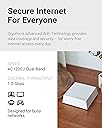
The Gryphon Guardian Mesh WiFi Router combines robust dual-band AC1200 coverage with advanced parental controls and next-generation cybersecurity. Designed for small to medium homes, it blankets up to 1,500 sq.ft. per unit with reliable WiFi while protecting every device from malware, phishing, and intrusions. Manage your network effortlessly via the Gryphon Connect app, scheduling screen time and filtering content to create a safe, high-performance digital environment for your family.





| ASIN | B082YGNKJH |
| Antenna Location | Security |
| Antenna Type | Internal |
| Best Sellers Rank | #29,629 in Computers & Accessories ( See Top 100 in Computers & Accessories ) #372 in Whole Home & Mesh Wi-Fi Systems #827 in Computer Routers |
| Brand | Gryphon |
| Built-In Media | Gryphon Guardian router, 90 days of Premium Protection, 1-Year Hardware Warranty with Tech Support, 90-Day Money Back Satisfaction Guarantee |
| Color | white |
| Compatible Devices | Smartphone |
| Connectivity Protocol | Bluetooth, Ethernet, Wi-Fi |
| Connectivity Range | 1800 square_feet |
| Connectivity Technology | Wi-Fi |
| Control Method | App |
| Controller Type | Android |
| Coverage | Up to 1,800 sq. ft. |
| Customer Reviews | 3.9 out of 5 stars 1,086 Reviews |
| Data Transfer Rate | 1300 megabits_per_second |
| Frequency | 5 GHz |
| Frequency Band Class | Dual-Band |
| Item Dimensions L x W x H | 4"L x 4"W x 1"H |
| LAN Port Bandwidth | 1Gbps |
| Manufacturer | Gryphon Online Safety, Inc. |
| Maximum Upstream Data Transfer Rate | 900 megabits_per_second |
| Mfr Part Number | GRYG1-UK |
| Model Name | GRYG1-UK |
| Model Number | GRYG1-UK |
| Number of Antennas | 2 |
| Number of Items | 1 |
| Number of Ports | 2 |
| Operating System | Android |
| Other Special Features of the Product | WPS |
| RAM Memory Installed | 64 MB |
| Router Firewall Security Level | basic |
| Router Network Type | mesh |
| Security Protocol | WPA-PSK |
| Special Feature | WPS |
| UPC | 868739000452 |
| Unit Count | 1 Count |
| Voltage | 12 volts |
| Wi-Fi Generation | Wi-Fi 5 |
| Wireless Communication Standard | 802.11ac |
| Wireless Compability | 802.11ac |
J**E
What I've learned...
So I've got teenagers. The teenagers drove me to this router. Prior to I had a Linksys with no complaints, followed by a Netgear Nighthawk, which was an outstanding peice of hardware, and the Netgear certainly had some parental controls, but it was a little clunky. As a level set I'm more than willing to fiddle with any electronic to get it to work. I have loads of patience and am the IT support for the house. In truth I like it that way and nerding out with the router is not a chore to me. So I buy the Gryphon and am pretty happy with the router. This also coincided with moving to a new home. Said new home is good sized and has 2 floors. The house is roughly 4300 Sq ft. My office ends up being right next to the router and I really did not have any performance complaints. My family though... Ugh. Complaints galore, and I had written some of it off as a new internet provider when we moved. As I said I continue to fiddle and change things hoping to get a better experience for all. What was frustrating is that the router seemed to put out the signal I needed at the edges of the house and while the speeds were not as fast as next to the router they were acceptable when not being heavily taxed. I finally came to the conclusion that I should add a mesh repeater as the system worked especially up where I did most of my work, but the complaints did not subside so my work was not done. I added one repeater which was quite easy. There wasnt a lot of fussing just scan a qr code on the bottom of the repeater in the app and you're off and running. After I added one it was a bit better....but Still getting complaints. So what's a guy gonna do? I decide to just go deeper down the rabbit hole. Adding a second and... Still complaints... Then eventually a third as I had grown tired of the complaining. I also came to the conclusion after speed checking every corner of the house and swapping around positions of the routers for several days in my spare time. Let me offer this peice of info also.... Sony PS4s have TERRIBLE WIFI ANTENNAS. I could not figure out why I couldn't get their machines to pull the speeds I could when testing on my phone.... Standing right next to the dang thing and I'm getting 200mbps more download speed. After some research I figured out that the PS4 unless sitting almost on top of the router is going to struggle to pull reasonable speeds. Do yourself a favor and just run an ethernet cable if you're in that position, or reserve yourself that you're going to have to add repeaters close to the PS4. That's free advice and it took me a long time to figure that one out. So besides all that I finally came to the conclusion is that this setup does not have great wifi signal out of the box, and you have supplement with the mesh system to unlock true performance. So after all my fussing what kind of speed am I getting? Cloat to the main unit I can pull 500mbps down and 450mbps up. Those aren't typos either. The hardware is legit after it's weak antennas are overcome. In the far corners of the house and yard I can pull roughly 100 mbps down and 125 mbps up. That compares to what it was before of 20ish mbps down and 30 mbps up. It's made a big difference. Lots of whining has gone away and now everyone can do anything they want and not worry about everyone else. Everyone can Zoom at the same time, while playing video games, streaming 4k videos, and uploading selfies to social media. So all that withstanding, what about the real reason I bought it? The parental controls are slick and simple! Want the kids to do their homework? Great just kill all the wifi to only their devices all at the push of a button. Want the wifi shutoff at midnight so they don't watch TV all night? Cool. Just set it up that way for that child. Kids going to "questionable" sites. No problem BLOCKED at the push of a button. When I was having complaints about the internet I had rounded up anything extra I could think of that would suck up bandwidth (Wyze Cams, Amazon Echoes, smart switches, light bulbs etc) nd assigned them all to a group in the app as a user. So when complaints started I could add bandwidth quickly with the push of a button by just suspending internet to those items. Assign static IPs with ease. We have a printer that loves to not marry up with the computers. Set that bad boy as static and never worry about it again. Assign whatever name you like to devices. In my house we have close to 100 wifi items to be assigned. Being able to identify by name (and it makes sense to me) is a God send. I was able to catch one of the kids in a lie because someone came over and hooked into our wifi and you can set it to ask permission to join. Mine is not set that way, but when all your devices are hooked up and suddenly a new one shows up... It's pretty obvious. Want 2.4ghz and 5ghz as a choice? Sure no problem. Want to not have to think about it and let the routers do the work. No problem you can do that too. The system really provides a lot of flexibility and performance once I finally got it all dialed in. It did end up being more expensive than what I could have done with a different setup, but I would not have had such a slick interface to deal with the kids. I am now very happy. The kids have been unhappy since it came in the front door....and I don't care! Lol. I hope you can make your teens unhappy soon too.
W**L
Gryphon saved my son’s distance learning grades
So far gryphon is working better than I could have ever expected. My son is in 8th grade and I was having a tough time getting him to do his distance learning school work during the quarantine stay at home. I tried to use the ISP’s parental control and he was able to bypass it with a quick youtube tutorial where he found a MAC ID generator and kept getting online. I’m an IT professional so I knew what he was doing and I got tired and didn’t want to be the “Regulator” that everyone hates. Like at work I needed to delegate this work or automate this “project” because I’m busy in meetings all day then doing my work until the evening. Doing some research I found Gryphon and decided to give it a shot. Gryphon was very easy to setup and bring online. My son couldn’t hack through the gryphon and I even saw that he was trying to go to VPN sites, I guess that didn’t work for him either since I disabled VPN for his Gryphon profile. I love that he can’t go to other sites that are too mature for his mind and I don’t have to worry about that anymore. He’s finally all caught up on homework and the teachers are even commending him for his good work. He’s a really smart kid it’s just that he was too distracted by his friends and just playing games online instead of doing school work during school(homework) hours. He now asks me if he can get out of homework an hour early if he completes his work early, hey why not! I’m not the Internet Police Dad anymore now I’m back to being a Father. Fyi- I had to disable any new devices on the ISP’s router so he wouldn’t physically plug into it when I first got the Gryphon. One night I found him passed out next to the router jacked in with an ethernet cable, he didn’t sleep that night. He can’t do that anymore.. UPDATE 2024: My son graduated from high school!!! The whole house said that we graduated lol! Yes, he did it and I believe if it wasn’t for Gryphon he wouldn’t have passed the 10th grade. I’m not saying it was the fix-all. Numerous phone calls, meetings and emails with teachers. Checking his homework online and being his homework Project Manager. He did rebel at one point and went back to live with his mother but I was able to get him through a hurdle(10th grade). We speak a little more often now and talk about technology. He’s applied to college and financial aid ‘on his own’ and is starting college next month. He told me he has a new drive to succeed. Which really impressed me! I’m glad my son is back. In life, We always just want the best for our kids. Sometimes it may seem that we are being tough on them but in the end it’s in their best interest and for their benefit. And even though you may not see the benefits in the beginning, you will see them in time. Always be a good parent figure to them and be a good example because they are watching and listening to you even though it doesn’t seem like they are when they stay in their room all day. One more thing; if Amazon allows. Tip #1 - Start them on Gryphon filter or internet filter young so it’s natural to them. The later you start the more rebellion you may get. Tip #2 - I met an older lady once that had 3 sons who were doctors. I asked her how’d she do it? She said keep them very busy. Sports, school clubs, martial arts. The busier they are, the less time they have to mess up. We learn something new every day. Good luck and God bless!
T**E
It was never stable or worked acceptably
MY BACKGROUND: I install stuff like this and related products for a living. I have owned a tech support company for over 15 years. THE GOOD: setup was easy and went well. I had to call tech support once during the process, and they were helpful. It does filter content THE BAD: from when I completed the setup the FIRST TIME (because, I re-did the initial setup SEVERAL times after that, more on that below) it would randomly reboot 2 - 5 times a week. The rebooting was even WORSE if we tried to use the built-in WIFI, so we mostly used a separate wireless access point that was hooked up to the router with a network cable. It was annoying but we lived with it. I told my kids to just pretend that they're using dial-up internet and someone picked up another phone extension in the house. After all that was how my childhood went, builds character. I called tech support about the rebooting and they said to update the firmware. Ok. Done. Still rebooting randomly. Sweet. Moving on though...the rebooting was the only issue (albeit common), until one day the device just went back to factory and lost it's association with my Gryphon account. Tech support manually rejoined the router to my account, but all the settings were lost, and when you're doing parental controls and security groups, there is QUITE a bit to lose. I set it back up again, and it worked for another week or so until it lost the entire account and configuration AGAIN!!! At that point, I re-did the setup, but the moment it finished the setup, it rebooted and reset everything immediately. I walked through the initial setup ONE more time to verify that it wasn't a fluke, but it just factory reset again the moment it completed. At that point, I just disconnected it and switched back to my old router. I have lost so many evenings and weekends on this product, it's infuriating. I'm glad this experiment didn't cost any more money, but the time lost was the real expense.
T**R
This Product Review is the Only User Manual You Will Get
This is a fantastic product, with fantastic software that comes with it. But it comes with a 3 x 3 inch note card in the box, that tells you to load software on your mobile phone in order to learn how to install it. The software won’t let you past step 1 until it gets a handshake with the unit, so you can’t scroll forward to understand the installation before you begin (and its instructions past page 1 could be summarized, “just plug it in and wait for the light to stop blinking”). There are a couple of long talking-head YouTube videos that say essentially the same thing, “Plug it in". Um, so what does the red blinking light mean? Red steady light? White blinking light? White steady? There are many up-front questions that an adult would want to know by reading a user manual, including how to use the software (which is very good, but which will take you a journey of tech-adolescent discovery, many hours long, to figure out what it does). But the manual does not exist. So, here is your manual, below (written April 2020, so it could change). I am totally unqualified to write this manual. The fact that you are coming back to this review to use as your manual is pathetic, and deserves a two-star knockdown. But I just knocked it down one star because I don’t want to penalize genius engineers for their clueless Apple-wannabee marketing department. 1) Installation. The base unit is strong enough to drive the inside of a medium/small house, with download speeds of between 50 and 150 mbps on my typical devices, and 5-30 mbps 3 rooms and 1 story away from the base unit. So don’t buy the mesh (only buy one Gryphon Guardian unit) if you don’t have a big house or don’t care if the outer rooms go down into the single digit mbps. Set up the first (base) unit and get it working before plugging in the others. The Gryphon Guardian units are all identical hardware, but the base sets itself up differently than the second and third units, which automatically set themselves up as mesh/repeater units when you install them. The units only have three plugs: “Power” “Internet” and “LAN”. The power cord plugs into the wall, which is required for all three units, but the mesh repeater units do not have anything else plugged in to them. No need to connect an ethernet cable between the host and mesh units, since they communicate wirelessly, but I assume you could connect them if you wanted to. Think of the “Internet” ethernet socket as “Input” and the “LAN” socket as "output". It comes with a 2-foot long ethernet cable, for you to plug the base Gryphon unit in to your Internet Modem (not used for the mesh/repeater units). In my case, I have a fiber optic modem, then a separate AT&T modem/router/WiFi unit that works with the copper ethernet cable that comes out of the fiber modem. You will need to keep your AT&T (or whatever) modem/router/WiFi, even though you are replacing the WiFi with this Gryphon, because you need the modem part of the AT&T (or whatever) unit that you currently have. It would be good to dig up your AT&T modem/router/WiFi documentation now before you buy the Gryphon (or call AT&T), because if you can’t figure out how to turn off the WiFi on your old router while the rest of it is turned on, then your kiddos will still be able to access the internet unfiltered. Of course, if they can reach the back of your old modem, they can still plug in an ethernet cable and access the internet through the cable, unfiltered. If you don't think they are smart enough to figure that out, guess again. I had to keep my AT&T unit for another reason: I have VOIP phone service (land-line style phone) that ties into a standard POTS phone cable coming out of the AT&T modem. No problem, I could not throw out the AT&T modem anyway, so this AT&T VOIP hookup stayed unchanged. On the back of your AT&T (or whatever) internet modem are output ports that probably say “LAN”. Connect the ethernet cable from the “LAN” port on your AT&T (or whatever) modem into the “Internet” port on the Gryphon. You should have installed the software on our smartphone by now, and it will begin to give you instructions. It takes a photo of the smart code on the bottom of your Gryphon so you don’t have to type in any serial numbers for the handshake. But if it can’t get a handshake with the Grypon WiFi at this point, you are stuck on the first page of the instructions. Sorry. Just start turning things on and off randomly. 20 frustrating minutes later, as you wonder what the different blinking lights mean, it will probably work. Apparently what I did wrong, was to plug the ethernet cable from my Fiber Optic modem directly into the back of the Gryphon (and then plug the correct one in later, but by that time the Gryphon was confused). When you first turn on the Gryphon, it communicates with the WiFi on your smart phone using a WiFi identifier that you must see and choose from your Smartphone WiFi connection, which has the word “Security” in its name. But apparently if you mess up the first step, the security WiFi choice goes away, but it gives you two other choices with a very similar name that you will foolishly try, over and over, before you realize that you must shut everything down and start the installation process over. OK, maybe I am stupid, but that is why I like to read through installation manuals before I start the installation process. The only time you will make a WiFi handshake with the Grypon using this “security” Grypon WiFi name, is when you are setting it up. But if you don’t see it as a WiFi choice from your smart phone, you can’t set it up. 2) What do the blinking lights mean? The Gyphon has one LED on the base that can blink and change between red and white. Your goal is a WHITE STEADY light. Until you see the white steady light, don’t even bother trying to connect a device to see if it will work on the internet. The sequences of lights, and my BLIND GUESS of what they mean, is: Red Steady: You fed power to the unit and it booted up. Red Blinking: The unit can’t get an Ethernet handshake with your internet modem. White Blinking: You are getting close. (Maybe you have a WiFi connection but not internet. Your guess is as good as mine.) White Steady: SUCCESS!! This boot-up process, even if it works, takes several minutes while you wait for the lights to cycle through their sequence. And any time you make a basic change to the system through the software, it will take the same amount of time to reset and restart, so don’t do it while your family is waiting. 3) WiFi Name and Password. Once you get a white steady light from the Base Unit, you can dive into the software, cussing the marketing people who tried to be arrogant like Apple (“BAH! Only idiots need user manuals!”) but they don’t have the chops to pull it off. It is very easy to change the visible name of your WiFi and the password using the smart phone software. You can set up a separate visitor WiFi name and password to give to household guests, which you can change from time to time for security reasons. The “Guest” WiFi will show up as a single person/user in the software so you would not want to use the Guest network if you want to control individual guest access at different access levels (e.g., some guests are kids and some are adults). If you use the same name and password as the old WiFi you are replacing, as soon as you power up the Gryphon all of your family’s devices will handshake with the new Gryphon unit and your family won’t even know you replaced the WiFi (until you start tightening down the access a few days later, heh heh). You can ask them if their speeds increased, and they will gush with praise for the new WiFi. I have one of my devices, a Sony smart DVD, hard-wired to the Gryphon unit with an Ethernet cable (connected to the LAN port), and it works fine. But each Gryphon Guardian only has one LAN port so most of your devices must connect wirelessly. 4) Setting up mesh/repeater units: Power them on and use the smartphone software to take a photo of the smart code on the bottom. That’s it. No cables to connect. Move them around in the house until they all show up as “green” on the Network page of your phone software; yellow will work but it will be slower. The software automatically hard-codes them as hub-and spoke units that are paired to the base unit (not to eachother). There is a software setting where you can set it to “automatic” or pair them to a different repeater unit, which I assume would allow you to daisy-chain them in a very long line that could go on for a city block. But of course this “repeater” function has to be a slower than hub-and-spoke, which is preferable if you are in a mostly square house. When you change this choice in the software, it shuts down and restarts the network without warning, raising loud objections from your family as they wait many minutes for it to reboot. 5) Access Levels. Normally, when a new device signs on to your network, your smart phone software will ask you which person in your family the device belongs to, so you can assign it to them and it will default to their level of access. But if you use your old WiFi password, all of the devices will come online at once and you will need to go in to the software to assign devices to the person who uses them. This is easy to do. You can also change the name of the device, after you figure out what it is, so it will be easier to recognize it later. During setup, the software will ask you if each of your individual users are “elementary” “high school” “adult” or “unrestricted”. This affects what websites they are allowed to visit. You can make these changes from your smart phone and it will change their access instantly… in seconds. I presume that Gyphon has a huge library of websites that are appropriate for various levels. The “Adult” level is more of a “Professional Adult” level—in other words, it still filters out web sites that would not be appropriate in a professional workplace environment. Only the “Unrestricted” setting allows all websites. You get the picture. In addition to the “level” for each person, you can also toggle “Youtube / Safesearch” on, which does two things: It turns off the “user comments” on YouTube, and it turns “Safesearch” on for Google and Bing (and blocks use of other search engines such as Yahoo search because it does not have a safe search function). This is my only complaint about the software: It should allow you to control YouTube and Safesearch separately. My kids really like seeing user comments on their favorite YouTube sites, which I think is OK, but that means their internet searches are also unrestricted. BUT this is not as bad as it sounds, because even if they get a search result for a bad website, if they click on that website they can not load it up because you have chosen the “High School” or even “Adult” option for them (not “Unrestricted”). Any level below "Unrestricted" blocks bad websites even if you have not toggled-on the “Safesearch”. You can toggle “track website” visited, or not. My own policy is not to track adults in my house, but to track all kids. If tracking is turned on, it only shows what site was visited, not what they did at the site. And it lists the sites that were blocked in a separate list. You can also toggle on or off the ability to go through a VPN, which otherwise would be a way to get around restrictions for a tech savvy user. 6) Malware. I have only had this installed one week, and it already flagged some malware on the computer (a MAC!!!) of a teenage guest using our Guest Network. It was malware that takes over your Google search engine for marketing purposes, not really causing damage. This Malware blocker is a subscription service that you get free the first year and then you can choose to pay for it after that. I’m already sold. There is also a companion software system that you can install on your kids smart phones, which will route all of their internet connections back through your Gryphon system even when they are away form home, allowing you to control all their access through Gryphon. I haven’t tried this companion software yet. In summary, this is a great system, with a non-existent user manual. After you have sunk endless hours wandering cluelessly like an avatar in a computer game, you will love it. UPDATE Fall 2021: After using this for about a year, I experienced intermittent performance for some computers, unless I was very close to a Gryphon unit. I discovered that there were so many neighbor devices using the same WiFi band, that interference was crowding the radio frequency. However, this unit also comes with a 5g radio frequency band; you have to set it up separately. It does not automatically swap between bands whene one is crowded. You must name and recognize the 5g band and handshake with it, as though it was a completey separate WiFi system. So, my low speed devices I left on the slower band, and my higher speed priority devices I put on the 5g system. I occaionally see speeds in excess of 200 mbps on the 5g side. They also recently "updated" the iPhone software. True to form, for a worse than useless marketing department, they apparently just changed the shape of icons and moved things around, so existing users have to learn the system again. But I did not see any real functional changes to the software.
G**T
Great range
Great range and setting options. Can keep track of teenagers usage and monitor children's websites.
L**Y
Decent hardware, software somewhat lacking
I will preface this by saying we DID return this item. The device is sound and operates well, and could have a decent future. However, right now, the parental controls are not ready for prime time. I did contact customer service with my concerns and were very receptive to recommendations. Some of them according to the CSR I talked to are in the works. But we needed results NOW, not a few months down the road, so yeah we returned it. However, I will be keeping an eye on them in the future, because some of their plans will make the device a well rounded security device if they come to pass.
G**D
Excellent device, very customizable to most any family situation, app can be a little wonky at times
The router is great and works nearly 100% of the time, though there have been some glitches with the app such as when setting up schedules it will tell you there is an overlap when there isn't, but just a little bit of playing around with it to figure out which days and times to enter first to prevent the overlap error didn't take long to figure out. The app doesn't work exactly as it should every single time, but you learn to live with the little idiosyncrasies and it works well enough to do what we needed it to do. By little idiosyncrasies, I mean things like when you try to do a one-time change of the schedule by canceling just one block of time, it sometimes cancels the rest of the schedule for the day, but not always. What I love is the ability to customize internet access for each device in the house and have easy visibility of what devices are connected and what they are doing. Very easy to monitor kids internet access and prevent unwanted access for each person or on each device, and very easy to control in real time from your phone.
N**N
Easy peace of mind
Before I got the Gyphon router I had a couple of simple requirements - I needed something that is easy to manage, safe and dependable. This device ticked all the boxes. Easy to manage: the app is simple, intuitive and responsive. Safe: you have #1 continual firmware updates to keep you at the latest vulnerability protection level at all times, and #2 real time, active malware filtering and protection that is also updated multiple times a week. I am not saying this is THE BEST and SAFEST solution out there, but it is pretty damn close at this price point. Very few people (tech-inclined) have the time or desire to make something better from open source software available currently, and if you rely on just plain old “buy our product and come to our website to see if we have blessed you with a firmware upgrade”, cough-Lynksys-cough, then... well, you might as well not rely on false sense of security. Anyway, the Gryphon devices are easy to setup, easy to use and simple and no-effort protection for your home network. Just stop looking for others and get it. Do it.
R**F
The Internet gateway you need
We have two young boys. We're certainly an "online family", as most are these days. Protect Young Eyes recommends this product, for keeping kids (and others) safe online. I was shocked to see how easy it was to access immoral and even illegal web content, in just two clicks... This device is inexpensive, easy to install, and works as advertised. It also helps a lot in limiting screen time. Not having this device, or one like it, is like leaving your front door open wide (or not having a door at all!), allowing anything or anyone to come in. I had wondered if this little device would provide a strong enough WiFi signal through our house, but it is plenty strong enough (our house is about 1200 sq ft).
G**G
Wrong power supply for Australia, and set up help is too simplified, but otherwise basically good.
Wrong power supply for Australia. Set up help is too simplified - doesn't explain clearly the best set up to piggy back on your existing Wifi router - I had to deduce that from some hints. Associated App could be improved But actually does the Parental Control well.
S**D
Excellent parental control
Excellent router for parenting control. However the, plug provided did not work in the UAE and had to be returned
A**R
Unobtrusive technology that gives peace of mind for parents.
The Gryphon Guardian is amazing! If you're a parent especially, the Gryphon app gives you all the info on what your kids are up to online, and provides them with safety and clear boundaries, and for parents, peace of mind, though you still have to keep an eye on them. The screen/bedtime/suspend timetable works a treat once you've got your head around how to set it up, and how to change it..read the simple instructions several times, I made the mistake of thinking I could do it without but it's worth taking the time to get it right the first time round. I've also had quite a lot of difficulties with teenagers viewing inappropriate stuff - the Gryphon Support team have been so helpful to explain how to make it as safe as possible, no system can be 100% but the Gryphon goes along way toward it. When they bring in developed tech for preventing VPNs being used it would be better still. The time delay for getting support is at most a few hours, they're very good responding generally by email, and from the app you have direct access, which has been really helpful when I had questions, and I've had many! There's been no blips in coverage and only 2 essential updates needed when 2 security alerts flagged up because of open ports caused by teenagers trying to dodge parental controls! So, I'm very happy with Gryphon, would definately recommend it. Thanks Gryphon
J**D
Perfect to prevent malware and support more devices
This wifi routers is very nice, I can finally use at least 100 devices and more, without using the basic router of my internet provider! It blocks malwares, security threats and you can take it everywhere without having to re-install your devices everytime! Very quick for the technical support! Doesn’t wifi 6 yet, but I couldn’t live without it anymore!
Trustpilot
3 weeks ago
1 month ago