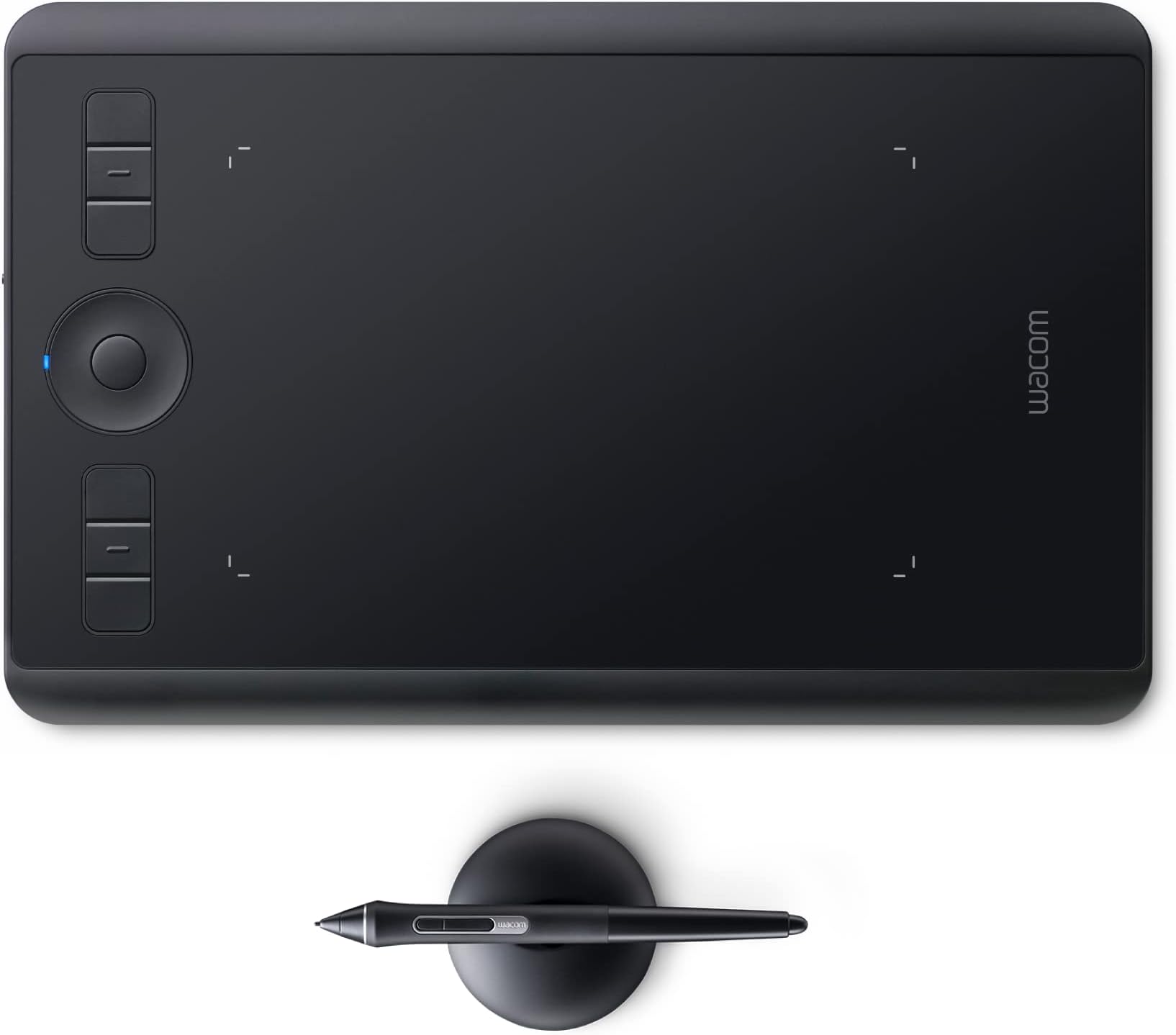


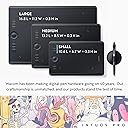

Intuos Pro Small
Product ID: 126508489
Details
- BrandWacom
- Connectivity TechnologyBluetooth
- Operating SystemWindows
- Pressure Sensitivity8192 levels
- Special FeatureBluetooth
🎨8192 pressure levels
📶Bluetooth wireless
⌨️6 customizable ExpressKeys
Desertcart purchases this item on your behalf and handles shipping, customs, and support to Cyprus.
🎨 Elevate your art game with pro precision and wireless freedom — create anywhere, impress everywhere!
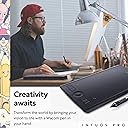
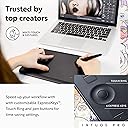
The Wacom Intuos Pro Small is a premium 10.6" x 6.7" wireless drawing tablet designed for creative professionals seeking precision and portability. Featuring the battery-free Pro Pen 2 with 8192 pressure levels and tilt recognition, 6 customizable ExpressKeys, a Touch Ring, and multi-touch gestures, it seamlessly connects via Bluetooth or USB to Mac and Windows PCs. Crafted from durable anodized aluminum, this compact tablet offers a natural, efficient workflow for illustrators, designers, and educators alike.


| ASIN | B07PPQH867 |
| Active Surface Area | 6.30" x 3.94" |
| Additional Features | Bluetooth |
| Best Sellers Rank | #213 in Computer Graphics Tablets |
| Brand | Wacom |
| Built-In Media | Graphics Tablet |
| Color | Black |
| Compatible Devices | Mac, PC |
| Connectivity Technology | Bluetooth |
| Customer Reviews | 4.6 out of 5 stars 4,034 Reviews |
| Display Type | LCD |
| External Testing Certification | 009461901796, 009461901796 |
| Global Trade Identification Number | 00753218986252 |
| Item Dimensions L x W | 6.7"L x 10.6"W |
| Item Type Name | Graphics Tablet |
| Item Weight | 15.84 ounces |
| Manufacturer | Wacom Technology Corporation |
| Mfr Part Number | PTH460K0A |
| Model Name | Intuos Pro |
| Model Number | PTH460K0A |
| Native Resolution | 1920x1080 |
| Number of Items | 1 |
| Operating System | Windows |
| Pressure Sensitivity | 8192 levels |
| Screen Size | 9 inches |
| Software Update Supported to Date | unknown |
| Special Feature | Bluetooth |
| Specific Uses For Product | Drawing |
| Target Audience | Student, Teacher |
| UPC | 753218986252 |
| Unit Count | 1 Count |
| Warranty Description | 2 years |
K**P
Amazingly EASY to use! Great for a MAC
This is a very easy tablet to use. I tried several tablets before, but had not luck. This is the first tablet that worked and it was EASY to setup. And the support is awesome! I bought my first tablet, about a year ago. It was a Wacom Bamboo. I had trouble setting it up and it never did work well for me. I never used it. I eventually donated it to Good Will. I bought my second tablet, several months ago. It was a Huion. I swore I'd never buy a Wacom tablet again. The Huion was extremely difficult to setup. When trying to connect it to my MacBook Pro, I had to disable my Firewall as part of the instillation process. After a messy installation, it never worked right. I tried using several drawing APPS but the lines were always connected and everything looked like one, crazy line. It was a mess. My friend had an older-version Huion and liked it. But, she connected hers to a PC with Microsoft (non Apple machine). She couldn't get my setup to work either. So, I gave my new Huion tablet to her because it seems to work better with a non-Apple machine. I bought this Wacom Intuos PRO as a last-ditch effort. It was more expensive than the previous two tablets, but I decided to give the tablet just one more try. Also, this tablet was recommended for math tutors on the tutor website, I plan to use. I have been tutoring math in-person, but I want to start tutoring online and I need a tablet to do that. So, I gave this Wacom Intuos PRO a try. It was VERY easy to setup. The installation was easy. The directions were easy to follow. My only problem was registering the device. I called support about that and they said they were having some internet problems. I begged the support person to help me get started, because I have had so much trouble before. He said sure. I said I just downloaded and installed the package (I suppose it was the driver). He said bring up any one of my drawing APPS. Then I said, how do I use the pen? He said, just use it. So I did, and it WORKED!! I was shocked. No adjustments were needed. It was like magic! It just worked. I could write numbers that looked like numbers! He also explained how to map my tablet to a particular part of the screen. Easy and intuitive! By far, this tablet was the easiest tablet to use with my MacBook PRO. I can learn the many other features later. For now, it works. And, I am very happy! I was just a little embarrassed for asking for help when I really didn't need any help!
R**K
Great tablet, works as well as my iPad Pro!
I want to preface this review by stating that I have never used anything like an actual Cintiq or similar. The closest comparison is my iPad Pro, which I had been using to creating fantasy art digital paintings for a good two years as of this review. My switch to a Wacom Intuous Pro was spurred by the fact that I'm now doing more complex illustrations and I really need the power of desktop Photoshop. Not iPad Photoshop, but he real deal app! I love Procreate, but Photoshop has the true power that I need when working on my drawings. Yes, you can draw and compose and paint all day long on the iPad Pro with Procreate, but I needed more processing power and, quite frankly, more layers! I previously had a Wacom Intuous 3, like probably 12 years ago or so. I used it back then, but never got into digital painting like I have in the last two years. I have no problems going from using the Apple Pencil which draws directly on the screen vs. using the Wacom Pen 2, down on my desk with myself staring at the screen. In fact, I think there is a slight advantage for me personally because now I no longer have a tendency to hunch over the iPad. It just seems to work for me just fine. I like to use my Wacom Intuous Pro M in tandem with the Apple Magic TrackPad 2. There are times when I connect via Bluetooth and my Wacom has a lag. I find that if I turn off the trackpad, then turn it back on, the Wacom pen and trackpad work without disrupting the either. I do find that I need to turn off my Magic Mouse entirely however. Yes, I like to work with both the Apple trackpad and mouse, I think it keeps my wrists from going bad and it just keeps my brain guessing, I suppose. You know, using multiple inputs for moving the cursor around and all. All in all, I would recommend this to anyone, the Wacom Intuos Pro M. I had one of the smaller Intuos, and it was fine, but the Pro has much more sensitivity, thanks to the Wacom Pen 2. The nib does wear down faster than I remember, but it doesn't really bother me. I think the pressure can be adjusted, but I really haven't messed with it. Should beginners use this? I think for the level of control, levels of pressure, it might take away the frustration with using a cheaper tablet. It's like when I was learning to paint traditionally: when I went from student grade paints and brushes to pro grade materials, there really was a difference in how I could manipulate the paints and use a brush that actually held its point. I imagine working on a Cintiq with Photoshop would be just as awesome or maybe even more. But, I will say that the level of control I feel I have using the Intuos Pro M in Photoshop to draw, sketch, paint is so spot-on, that using the Intuos Pro M will save me hundreds of dollars when compared to a Cintiq.
N**H
Industry Standard, Worth the Price
After poring over reviews for less expensive tablets I finally decided to purchase the more expensive Intuos Pro (medium size). While pricey, it does not disappoint. It suits my needs perfectly as a 3d artist who suffers from wrist and joint pain. I moved from a mouse to a trackball years ago, and while it helped, it did not alleviate the problem. The pen-tablet combo is even better, for while some movements remain repetitive, many are mitigated through the multiple ways of accomplishing similar tasks. I still pull out the trackball when doing simple things like typing/navigating documents etc., but am using the stylus more-and-more for a variety of applications as I become used to it. PROS: ● Intuitive settings interface ● The included stylus is easy on the hands (mine are large, but not huge: long thin fingers) ● Bluetooth or Type C connection for wireless or wired use (nice when it works) ● Mid-size tablet is a perfect size for everything I do (the large would be too much for my tasks) ● Pen comes with several replacement nibs ● Tablet surface is sensitive and feels natural to write on for me ● Has a user friendly "Touch" feature that turns it into a giant track-pad with programmable hand gestures (works really well for me) ● "Touch" feature can be disabled with the flick of a switch ● On-tablet programmable buttons, as well as pop-up menus for all or select apps ● The option to replace the standard (medium) drawing surface (smooth, medium, rough) CONS: ● Sometimes the driver stops working (so far not often). Pulling its USB and then plugging it back in takes care of this, and when that fails a reboot is necessary--annoying when in the middle of a work-flow. EDIT: The bluetooth has consistently broken the tablet drivers--so much so that I stopped using the wireless option. It would be a great feature, if it worked without having to restart the system constantly. My bluetooth adapter works without a hitch with my other devices, so the problem seems to be Wacom's drivers. When plugged in (not using bluetooth) the drivers are much more consistent. Apparently Wacom drivers seem to be an issue with other reviewers as well--hopefully these issues are addressed through updates. ● The side buttons on the new model are stiff, requiring a bit of pressure to toggle/keep toggled. Repetitive tasks are then more difficult, especially when hand fatigue sets in. As a result I find myself using the keyboard for shortcuts with my left hand while working the stylus with my right. Wacom would do well to lighten the mechanical switch, or provide the option for user defined pressure settings. ● The "Touch" feature can only be disabled through the mechanical side switch. Some applications do not distinguish well between pen and hand input, making the touch feature undesirable when a stylus is necessary. It is a bit annoying to have to physically toggle a switch when one is using keyboard shortcuts, pop-up menus, etc. Wacom would do well to also include a programmable shortcut etc. for touch on/off (I believe the older version of the Intuos had this feature, but without the mechanical switch--which I do like). ● The included medium grade drawing surface seems to be wearing out my nibs prematurely. If I end up spending a lot on extra nibs I will take the plunge and replace the surface with its smooth variant, but would rather save the money. For now I am carefully refining my used nibs with 1000 grit sandpaper, which works well-enough. In spite of these annoyances, I am satisfied with this tablet. Hopefully the next permutation by Wacom will be even better (especially driver stability).
G**N
Great product and great use.
So combine this with the carry case for the extra protection. It's pretty comfortable, and was easy to set up, didn't have to do much to get started on drawing. The sensitivity is pretty good, and I would recommend a microfibre cloth to clean the surface (a glasses cleaning cloth works great btw) It comes with plenty of nibs for the pen, and the drawing ability is great, you can use your finger, or the provided pen. It's pretty good! This is nice if you want something a bit smaller than your keyboard, but not overly small, but it's not too big either.
Z**Y
The Best Graphics Tablet (too Much) Money Can Buy
Wacom are the industry leader in graphics tablets, and with good reason. All of their products are extremely high-quality, and the Intuos Pro line is no exception. This tablet came with the actual tablet itself and USB power cord, the pen, a pen holder with spare nibs stored inside, and a set of colored rings that screw into the pen (so you can customize the pen). I am going to review the major components of this individually, followed by my overall thoughts at the end. THE TABLET The tablet is really top-notch. It feels great, has a nice heft (not heavy, just solid), and looks professional. It's mostly made out of metal. It's extremely high-quality, and without a lot of the kinks that cheaper tablets or even older Wacoms have. I have the Medium, and it has a huge drawing area. Unfortunately, the drawing surface has a tendency to scratch really easily. It comes with a medium texture sheet, which I later replaced with a smooth one, and the standard plastic pen nibs easily scratch both. I don't carry it around, but I imagine if I stored it in a backpack or briefcase that it would also scratch up pretty fast. You can buy replacement texture sheets online, and this tablet comes with a card with three tiny samples of each texture--smooth, medium, and rough--but these samples are so small it's basically impossible to get a feel for what drawing on the different textures is like. The tablet has a set of hotkeys on the side, which you can flip to be on the left or the right side of the drawing area in the driver software. I really like that feature, as I'm a lefty and keep my keyboard to the right of the tablet already. You can reprogram each of the hotkeys, but it does get a little complicated--the driver software isn't too intuitive, but it seems like it can give you a lot of control once you figure it out. I only changed the Command-Z hotkey to a Command-Option-Z hotkey for Photoshop, and that wasn't too difficult. The other physical feature is a touch ring, which is, well, kind of dumb. It's not very responsive, and only seems to do what it's supposed to some of the time. In Photoshop it's set up to zoom in and out by default, and I almost never use it because I can just pinch on my Macbook trackpad and get a reliable result instead of a jumpy, terrible one. You can also cycle through it to use different settings, like the canvas rotate in Photoshop, but it's still pretty jumpy and awkward. Maybe I am doing something wrong, but now I pretty much never use it and sometimes find myself hitting it by accident and getting frustrated. You can use the tablet either tethered to your computer or wirelessly. I have never used it wirelessly outside of testing it out when I first bought it. There's just a little bit of a lag that I found distracting, and since I use it with a laptop I have to set them both on the table anyways. Wireless might be useful if you have a different setup with something like a PC connected to a television, but for me it wasn't worth the lag. Latency is much better when plugged in, and you don't have to worry about battery life. Installing the tablet on my Macbook was simple, although it does require you to sign up for a Wacom account to use the driver software. After installation, it's pretty easy to jump right in to using the tablet. As I mentioned before, the driver software is not very intuitive, and fiddling with the settings isn't super easy aside from a few simple ones like pressure sensitivity. Finally, the tablet also functions as a touch input device for your computer--essentially a big trackpad. You can turn this function on or off in the software, which is nice if you're like me and you brace your hand on the drawing surface. It's not super great as a giant trackpad, and I prefer to just use my Macbook's which is more reliable. THE PEN Some people may not know this, but Wacom has a patent on powerless pen technology. Technically, the surface of the tablet acts as a magnet that reacts to a coil within the pen itself. It's complicated stuff, but basically you never have to worry about charging the pen like you do with ones from other companies (including the Apple Pencil and the Microsoft Surface Pen). To me this is the greatest benefit to getting a Wacom tablet over the cheaper alternatives--it's just one less thing to worry about, and it allows Wacom more freedom in the design of the pen itself. As a result, the stylus is lighter in weight and can taper comfortably. It's made of a durable-feeling plastic and the lower half of the pen has a rubberized coating for your hand. There are two mappable buttons on the side along with the pen nib and eraser, both of which react to the tablet. It works wonderfully. Responses are quick and accurate. It's easy to click on even the smallest of buttons in Photoshop, much more so than the average stylus on a phone or tablet. The pressure sensitivity is great, and it's able to detect extremely minute shifts in pressure and tilt. Pressure sensitivity is customizable in the included software, and it can take a little while to find your sweet spot, but the pen is always super responsive. Lastly, there are a few different types of pen nibs you can purchase to really customize your drawing experience. It comes with a plastic nib already in it, but there are more hidden in the pen stand. The plastic ones are nice if a bit scratchy, and feel a bit like drawing with a sharp HB pencil. They do wear down pretty quickly, especially if you tend to hold the pen in a certain angle most of the time. I prefer the felt nibs, which are smoother but wear out even faster. Mine came with a couple nibs of both types, so it's easy to experiment. There's also a mythical third "flex nib" out there somewhere, but I could never find conclusively that it works with this pen. And unfortunately, nibs are specific to certain product lines. THE STAND The pen holder is a small dome with a thick metal base that unscrews to reveal storage for spare pen nibs. It's nice and heavy, which is great if it lives on your desk, not so great if you want to travel around with it. The stand has both a hole for you to insert the pen upright and a divot for you to rest the pen horizontally across it. There's a small rubber ring on the bottom that keeps it from slipping around your desk, which is a nice touch. In my opinion, it's a much better design than some of the older pen stands I've seen others use from Wacom. The only issue I have with the stand is that it's very hard to open and close the bottom. You have to rotate it just right, but there's not really a good place to grip it so it can be a bit challenging. I usually take the whole stand between my palms and rotate my whole hands in opposite directions, which works consistently for opening it but is a little less reliable for closing it. To close it you have to line it up the right way, which is a pain. OVERALL THOUGHTS AND CONCLUSIONS This is a great product, and I believe it's truly the best graphics tablet you can buy today (not counting display tablets like the Cintiq). Wacom really knows their stuff, which is why they're such a trusted brand and have been for decades. It's a great-quality piece of tech with very little downside in terms of quality, and I think it easily outperforms the alternatives in terms of design and features. It's just a joy to use. But now we come to the biggest issue I have with this tablet, and with Wacom products as a whole: price. This thing is just way too expensive. At $350, it's more than half the price of an iPad Pro and roughly half the price of a new Microsoft Surface Pro, both of which are great products for creating art but which also do way, way more. They not only have actual displays on them, eliminating the need to learn to draw without looking at your hand, but they also function as whole computers that do more than just run artist programs. But this is a product mostly for professional use, so you may not be looking for an iPad or touchscreen computer. That said, there are so many cheap alternatives that may not meet Wacom's standard of quality but that will get the job done now. Huion is everywhere right now, and while I haven't gotten to test any of their tablets (though I'd love to) the consensus seems to be that they're getting better all the time. Wacom will have some stiff competition in the artist space in the next few years. On top of that, pen nibs, texture sheets, and carrying cases are all a good deal more than they should cost. The pen nibs are probably the most egregious crime, because they seem to wear out with roughly 10-15 hours of drawing time. You'd need a million of them if you're a drawing addict. A worn-down nib will scratch the texture sheet of the tablet, particularly the smooth sheet. I bought the smooth texture sheet thinking it would wear down the nibs more slowly, but instead it just means the surface of the sheet will wear out more quickly. Wacom makes great stuff, but their price models kill me. The Intuos Pro line is expensive, but not outrageous; something like a Cintiq is insane when compared to the alternatives. Wacom gets away with it because their stuff is admittedly really good and because they have the patent on the most advanced version of this technology. There's just a massive barrier to entrance and constant recurring costs. I'd love a Cintiq, but I could never justify the price to myself when I could get a whole computer for the same amount. As a professional I can see the utility, but as a hobbyist it doesn't make much sense. All that said, I still would really recommend this product. It's the best of the best, and a joy to use. I'm extremely happy with my purchase overall. If you're serious about your art or design work, this is the graphics tablet to get.
J**9
Did not work when unplugged, no bluetooth pairing. Revised
To be used for photo editing on Mac Mini with Monterey 12.4. When I received this tablet, I read instructions online since there is nothing in the box but a small card with icons and arrows showing how to connect the tablet and start it. The card gives you the impression this is a Plug And Play, mais non! Reading from the site, you realized there is an order to follow to install the software: do not turn on or connect the tablet to your computer. Install and then connect. But in my case, even that did not help. I spent a Sunday PM trying to get it to work, which entails, but is not limited to, reading a lot online, downloading and installing twice, cleaning computer in between, and playing around with computer Preferences to address issues raise by Wacom Support--reading from its Web only--or trying what other users suggested. The additional challenge is that that recent tablet has been redesigned so it does not offer the buttons or adjustments suggested in videos or messages. Then I gave up and spent more time cleaning up my Mac with CleanMyMac. I am exchanging this tablet for a new one of the same model hoping it will work. I will update this review accordingly. 06-01-22 I just received the new one and it worked perfectly well. I did not unwrapped it until I was able to test the bluetooth and it paired right away.
M**A
An awesome graphics tablet!
I got the Wacom Intuos Pro Medium for Christmas and, so far, love it! It’s truly amazing how far technology has come. I love the freedom of being able to draw on the computer and edit as much as I like, or need, until I get the results I’m looking for. Now I just need to get more familiar with the software and I’ll be in Heaven. So far this works like a dream. The only issues I’ve found are when using the eraser it often doesn’t realize that I’ve turned the pen over and tries to continue using the pen or paintbrush until I click away from the page. It has done the same thing when reverting back to the pen, where it continues to erase. It isn’t terrible, just a little annoying at times. I’ve learned to live with it. As for the size, I was concerned about the medium being too big as, reading reviews before purchasing, I saw several people state that you were better off getting the small. I can understand why some people would prefer the smaller one seeing as you wouldn’t have to move your hand as far, but with my 17” computer screen I agree with others who felt the medium was a good choice for larger screens. All in all I’m very happy with my purchase, look forward to getting more accustom to the program so I can make the most of my abilities, and fully recommend this product, whatever size you choose.
C**N
Do not settle for imitations.
I am a professional creative. Over the course of my career I've worked every position from production artist to creative director. I have owned several Wacom pen tablets over that time. When I upgraded to the latest Mac OS, it broke the driver which Wacom no longer supported for the otherwise perfectly usable two Wacom tablets I already owned (a peeve I'll pass on the opportunity to grieve about here). With new competitors on the space, I thought I could save a buck, and bought a Gaomon model. While the hardware itself felt solid, the software driver was deficient, and lacked features. Even if a competitors' hardware feels solid (perhaps is even well made) without Wacom's software driving it, the level of granular adjustment—especially mouse mode, so important to using a small tablet with a large monitor—rendered the Gaomon virtually unusable. I wrote an extensive negative review of the Gaomon tablet here on Amazon as well, so buyers can check my reviews there, nothing more needs to be said. Bottom line, you get what you pay for. The responsiveness, and professional level of control provided by the Wacom driver software is the difference between this tablet and lower cost competitors. Spend the money.
C**N
Great Product
bought this for my boyfriend and he loved it for his work! was very useful and the bluetooth function is especially amazing because there’s no need for cables!
R**O
Ótima mesa, mas desative o "Windows Ink"
Atualmente uso Windows 10 e a mesa funciona perfeitamente, mesmo sem atualizar os drivers. Recomendo desativar a função "Windows Ink", tanto nas opções da mesa quanto nas do próprio Windows (para estas últimas, procure no Painel de controle). Sinceramente não sei qual é a função desse Windows Inks: ela é completamente inútil para o desenho, nada afeta nas funções da caneta e da mesa, além de ser irritante.
L**T
Praise the Wacom Gods
I started using a wacom tablet in 1996. It was a huge gray monster, thick and ugly, with a fat adaptor and a bunch of cables. I was hooked on the product right then and there, and used it for many years. As things changed and improved, I got new ones, but only when necessary... I was on my fifth Wacom in 2016, and was still very happy with the product. I have always treated them well, so it looked and felt brand new... and then, my computer updated to Windows 10, and the Wacom stopped working. I found out that my tablet was no longer supported, and felt betrayed... a beautiful tablet like mine, still new, now compatible? It was just six years old! I was so mad. I mean, how much better could the new tablet be? It was just a TABLET for Pete's sake. So, for the first time in over twenty years, I went to a competitor (Huion) and paid a small fraction of what the new Wacom would be. I thought, $70 bucks, sign me up... the new tablet arrived, and it looked and felt like a quality product. I was so excited. During the following weeks, the excitement waned... glitches, freezing, jumping, to the point where every few seconds I had to grab the mouse which somehow reset the pen so it would work again. The surface had no grip and felt like I was drawing on glass, which irked me. The pen, also, did not have the pressure sensitivity I was accustomed to, even though it claimed to match Wacom (in their dreams!) I suffered through it for a year, feeling like someone was holding my arm back as I was trying to draw. This past December I finally decided to purchase a new Wacom because I noticed I started dreading graphics work... I spent a year avoiding doing computer art as much as I could, and I can't live like this. This is my second day with my new Wacom tablet. It is thin and unassuming, much smaller than my old Intuos 4... and THERE ARE MAJOR IMPROVEMENTS. Did you know that you would not need a mouse anymore? I DID NOT! Now, I can use my fingers to glide between both my screens, which the pen can be mapped only to one of them. The commands (using one finger, two, three or four) are very intuitive... it was SO easy to learn. I no longer need to be switching between pen and mouse when I go to my second screen, because now I can reach everything with my fingers. I know it sounds minor, but if you have two screens or more, you know this is a huge bonus! I can also pinch, zoom and rotate with my fingers, just like you do with a touch screen... so, when I am working on Corel Painter, I can spin the canvas around just by rotating my fingers. This made painting so much more intuitive! The pen has INCREDIBLE sensitivity. I am talking a perfectly drawn line that goes from thin to fat with no skips in thickness... there is no delay, no bugs and no freezing whatsoever. I am just so excited with this product... I am so happy I decided to order it. And surprised at the amazing improvements that have happened these past few years. If you are like me, holding on to an old tablet and thinking there is no point in getting a new one, YOU SHOULD! And... Thank you Wacom for making me enthused about my work, and I promise I will never jump ship again!
S**A
Great product for Digital Painters who wanna make it their profession....
The overall product is amazing and if you're into digital art of any sort it's definitely a must buy if you feel like continuing professionally....The packaging is great except for some stray marks on the drawing surface due to glue residue from the plastic wrapping I guess which isn't a big deal but hampers the unboxing experience a bit....
J**.
É bom saber! PTH660M
A Mesa digitalizadora Wacom é de longe a melhor opção para quem deseja precisão e durabilidade. O produto é construido de ótimo material e tem excelente acabamento, e os drivers instalam automaticamente e é tudo intuitivo. Tem muitas opções para personalizações mais finas para cada programa, eu uso diariamente os produtos da Adobe, como Illustrator e Photoshop e a resposta é extremamente satisfatória. Eu tinha uma Wacom Bamboo e durou uns 8 anos, até não responder mais, porem eu creio se tratar de um problema de software/driver, porque o hardware ainda está com uma ótima aparencia. Espero que esta dure muito mais pois convertendo em valores daria para comprar umas oito mesas do modelo equivalente a Wacom Bamboo. A diferença entre as mesas do modelo que eu tinha para este é sem dúvida o tamanho e a sensibilidade do toque e da inclinação da caneta, sem falar das facilidades como Bluetouch utilização sem fio, apesar de eu ainda não ter utilizado pois preciso de um tempo maior para testar todas as fiuncionabilidades da mesa. Caso você quiser manter conectada com o fio a entrada é dos dois lados da mesa, facilitando a sua montagem independente de onde estiver a sua CPU ou Note. No começo achei muito grande a mesa PTH660M, porem com o passar dos dias eu me acostumei, pois uso dois monitores 4k e com a resolução alta, porem ela dá conta tranquilamente na sua área de espaço. Outra questão é que estes modelos novos não vem com os anéis de cores para personalizar a caneta e nem sei se vende separado, na dúvida sobre o produto não ter vindo com os anéis e nem com o mostruário de texturas eu liguei para o suporte da Wacom e fui muito bem atendido e foi tirado todas as duvidas. Nota 10!
Trustpilot
2 weeks ago
2 weeks ago